Microsoft has introduced a “New Outlook for Windows” to replace the old Mail and Calendar apps, as well as the classic Outlook many people have used for years. On paper, it’s meant to be simpler and work the same on Windows, Mac, and in your web browser. In reality, many users are finding it harder to use, slower, and missing important features.
Outlook has been around since 1997 and became one of the most popular email programs in the world. It was used to send email, store your contacts, appointments, and tasks all in one place. Over the years, it gained powerful features for organizing and customizing your email. People relied on it for both personal and business use.
The new version strips away many of those features. For example, you can no longer store emails offline in special files (PST files), set up advanced rules to organize mail automatically, or easily block unwanted senders. Even simple tasks like saving multiple attachments at once can take more clicks than before. Some users also say it’s slow, freezes often, or uses a lot of computer power. The design may look cleaner, but it can make everyday tasks more frustrating, especially if you were used to the old way of doing things.
This has led many people to look for alternatives, and one program that comes up often is eM Client. It’s an email app for both Windows and Mac that works with most major email services, including Gmail, Outlook.com, and iCloud. It’s designed to be fast, easy to use, and full of useful features without feeling cluttered.
With eM Client, you can customize the layout, change colors and themes, and keep using features like snoozing emails, undoing a send, or encrypting messages for privacy. It also works well with large inboxes and lets you save emails offline. Many people find it easier to learn than Outlook, and it doesn’t require a monthly Microsoft 365 subscription – you can buy it once and own it.
If you’ve tried the New Outlook and found it confusing or limited, you’re not alone. While Microsoft may improve it over time, eM Client is already a stable, full-featured alternative that can help you get your email, contacts, and calendar back under control without the frustration.
Many people – ourselves included – believed that Windows 10 was the last version of Windows, and Microsoft was just going to keep upgrading this version indefinitely. After all, it continued to get new features and design changes well into its lifecycle, and Microsoft continued to implement ideas that they would usually reserve for a following version as they went. As we now know, though – this was not to be. Windows 11 officially released to the public on October 5th, and is now generally available for download. Some design changes have been made from its predecessor, both aesthetically and functionally, but generally they’re fairly similar. One place where similarities end, however, is their supported hardware; Windows 11 is much pickier than Windows 10 was, and many older systems aren’t officially compatible. You may be surprised to find out that your own computer is unsupported for the upgrade, and even if you can do it, should you?
Features of Windows 11
Starting with the differences, Windows 11’s design has taken a lot of cues from Windows 10’s, but there are some minor changes. For one thing, the start menu is more centrally located, rather than at the far left corner of the taskbar, and buttons are more spread out than before. According to Microsoft, this is intended to make it easier to accurately use Windows 11 with a touch screen for tablets, 2 in 1 laptops, and all in one desktops. On the subject of touch screens, Microsoft has also effectively removed the “tiles” that were originally introduced in the much maligned Windows 8. Ironically, much of the public loathing for Windows 8 came from the massive design departures Microsoft had made from the widely-loved Windows 7, that were meant to, rather similarly, make the system easier to use on touch screens. Aside from the general layout, system icons have been redesigned with a smoother, more modern look, while more controls have been brought into the “Settings” menu, as Microsoft continues the retirement of the “Control Panel” that began with Windows 10’s launch in 2015.
Functionally, some new features have also been brought into the fold for Windows 11. For one thing, the action of “snapping” windows into the sides or corners of a screen by dragging them to the edge of a display has been improved, for more efficient viewing. Likewise, working with virtual desktops and multiple screens has become smoother, which can be helpful when doing heavy multitasking taking a docked laptop on the go without losing the layout of your windows. Users can now also make video calls and conferences directly from the taskbar with Microsoft Teams, which has been redesigned and more tightly integrated into the Operating System. Many of these features were prioritized directly for remote workers and students in order to make Windows 11 both easier and more versatile. Aside from multitasking and efficiency-focused features, the installation of Android apps will also soon be supported, allowing users to have access to apps and features previously only available on mobile devices. Performance on some new hardware has also been improved, although like with any new software, some kinks have yet to be ironed out.
Getting Windows 11
Let’s say you’re interested in the improvements Windows 11 has to offer – how do you go about getting it? Well, if you’re currently using a computer running Windows 10, upgrading to it may not necessarily be as sure a thing as upgrading to Windows 10 was several years back. Windows 11 has stricter requirements than any of its predecessors. While most of them are aimed at ensuring the security and good performance of computers going to them, some of them certainly seem a bit arbitrary. For example, one of the most glaring limitations most users will encounter is CPU support: your computer’s processor needs to belong to, at the least, the 8000 series from Intel, or the 2000 series from AMD. This means that, for your computer to be officially supported by Windows 11, it has to have been manufactured no earlier than the end of 2017. Aside from the specification requirements, your computer must also have certain security features enabled, including Secure Boot and a Trusted Platform Module. We won’t go into detail on these two, but suffice to say, only most newer systems have both of these functions enabled by default. While there are ways of bypassing these restrictions, Microsoft has been fairly explicit about the fact that you may not be entitled to updates or ongoing support when using unsupported hardware. In other words, if you work around the limitation, your mileage may vary. The good news is, most new computers currently on the market will support Windows 11 out of the box, even if they don’t ship with it preinstalled. For any users that are eligible for the upgrade, Microsoft appears to be rolling it out slowly, so if you cannot upgrade to it already, you should be able to within the next few months. Now, if you are unwilling or unable to upgrade your computer to Windows 11 for any reason, it’s not the end of the world. You won’t immediately lose support or functionality just because a new version is available; Windows 10 will continue to be supported until October 14, 2025, by which point even the newest “unsupported” computers should be over eight years old.
Should You Upgrade?
Assessment time: should you upgrade to Windows 11 or go running out to buy a computer that can run it? Well, you should expect that, like any new release, Windows 11 surely has some teething problems to work through. Likewise, some of its core features (like Android app support) aren’t even officially available yet. Our suggestion usually is, for most extremely new software, to wait a little while for issues to be worked out. The new version isn’t going anywhere anytime soon, and Microsoft only stands to lose by cutting off the option to upgrade later. Likewise, if your computer can’t make the upgrade for whatever reason, you also shouldn’t feel compelled to buy a new one unless you’re already having other issues with it. Naturally, if you’re unsure of what to do, feel free to reach out to us at RGB Computer Solutions.
As many users of older Macs and PCs are probably aware, there is a rather finite amount of time most companies will continue to support their software products and operating systems. Long term support for older versions of software and operating systems can be hard to find.
In the case of Microsoft, each version of Windows has a sort of “shelf life” that usually lasts around eleven years, during which time Microsoft moves from adding new features to just patching bugs and security problems. Eventually, the version reaches a point called “end of life”, wherein Microsoft releases one final update and then ceases work on the product.
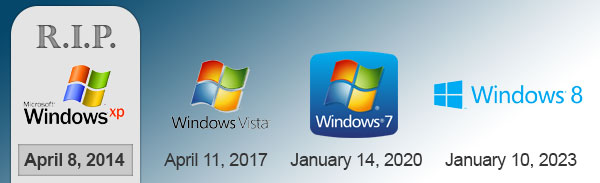
Former Windows XP users are probably the most well aware of this, as XP still had a massive share of users when support for it ended in 2014. It was so widely used, that Microsoft had to extend their deadlines (twice!) to give time for the adoption of newer operating systems by XP users to reach acceptable levels. This has become relevant once again, as Windows Vista is the latest on the chopping block. Thankfully, not many people still use the ill-fated operating system, and most of its users have since moved to the more stable and well-designed 7, 8, and 10. However, there will definitely be some people left behind by this shift. Not to mention, a pretty large sum of people still use 7, which at the time of this writing has less than three years left. As with XP and Vista before it, once this deadline comes around, Windows 7 will stop receiving updates and security patches. These types of patches help keep people safe from major threats and security holes such as those exploited recently by the WannaCryptor Ransomware virus. Thankfully, with the advent of Windows 10, Microsoft has abandoned their previous release strategy, and are simply going to add new features to and update Windows 10 indefinitely.
On the Mac side, things aren’t so cut and dry. Apple does not exactly support older versions of Mac OS X, instead releasing major bug fixes for the current version between major releases. However, versions come out much more frequently than with Windows, with a new Mac OS 10.xx being released almost once a year. Not to mention, upgrades to the new versions are free, which is a move Microsoft has only made once, for users of 7 and 8 to move to Windows 10. Because every system running Mac OS is made by Apple itself, as well as the reasons listed above, Apple decides on update support by the Mac models instead.
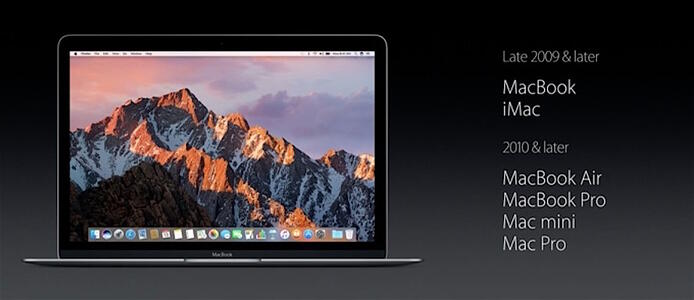
Sometimes there’s a very real limitation, either in technology or design, for Apple to cut out support on a new update for certain models. For example, when Apple switched to Intel processors over a decade ago, the new version of OS X released at the time wasn’t compatible with the older Macs running IBM chips. Similarly, several years later, certain Macs weren’t “64-bit” compatible – as a result, they too were left behind. In some cases, certain Macs might be supported by an update, but simply don’t have the specifications to handle it. This time, the decision seems to be a bit more arbitrary in nature. However the line has been drawn pretty clearly – No Mac made before the end of 2009 can update any further than 10.11 El Capitan.
For those considering Windows 10: Take these steps first!
It’s been almost a year since the launch of Windows 10, and with it have been many people taking advantage of the free upgrade. However, we still get (even this much time later) many people who willingly take the upgrade, only to find that their computer was not properly prepared and has thusly been adversely affected. Contrary to popular belief, the Windows 10 upgrade does require some preparation to ensure the best chances of a clean, working installation.
With there being so many different manufacturers and models using so many different designs and configurations, it can be difficult to guarantee proper compatibility when you’re going from one version of Windows to another. A good deal of people had a similar experience during the days of Windows 8, when many users were trying to install Windows 7 on brand new computers that were built for use with Windows 8. Unfortunately, in many cases, some parts of the computers simply would not work with the older version, and even in the best cases there might be undesirable side-effects.
Thankfully, given the wide-spread availability of the Windows 10 upgrade, many manufacturers and brands have started listing the compatibility status on their websites for different models, giving their customers an idea on what will work, what will not, and what might need some finesse to be made to work properly.
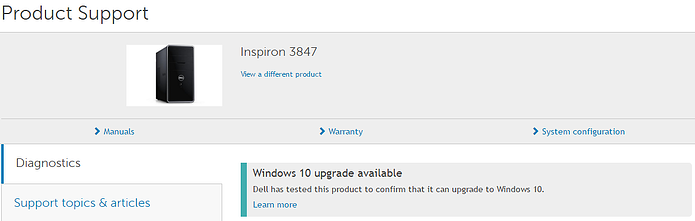
That brings us to the first step of a prospective update – check with the manufacturer to see if your model is compatible. Below are some examples of what you might expect to find on a manufacturer’s support pages regarding Windows 10.
Dell’s Windows 10 compatibility is listed under the support page for the specific model.
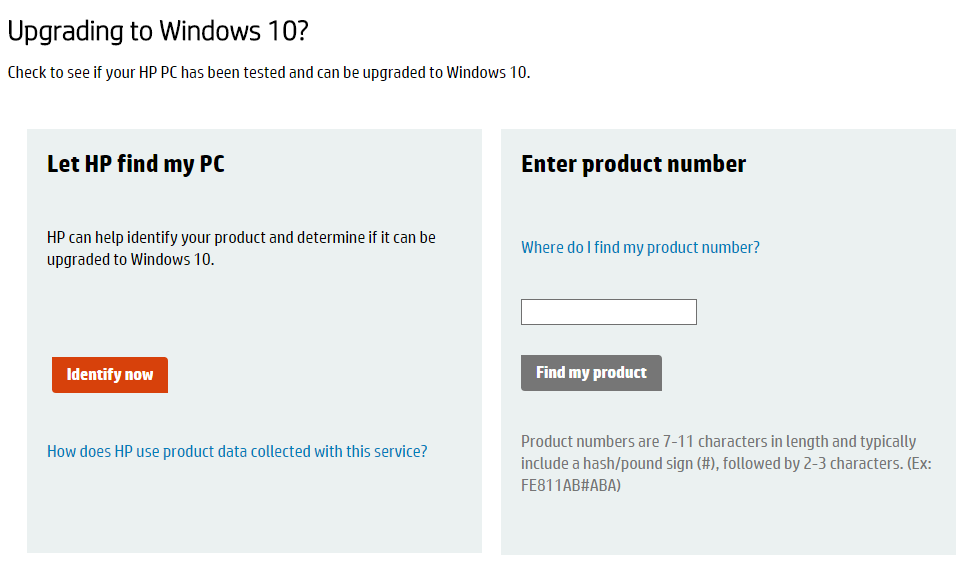
HP has a support page for looking up Windows 10 compatibility as well.
In our experience, most Windows 8 users should expect full compatibility and a relatively painless upgrade. However, Windows 7 users have to be more careful, as often-times most Windows 7 computers are now more than 3 years old, which is long enough where some manufacturers may stop testing or providing new updates for them. Beyond this, it’s important to consider the fact that Windows 7 is now 7 years old and two versions behind Windows 10. As a result, it has to make a larger “leap” in software than Windows 8.
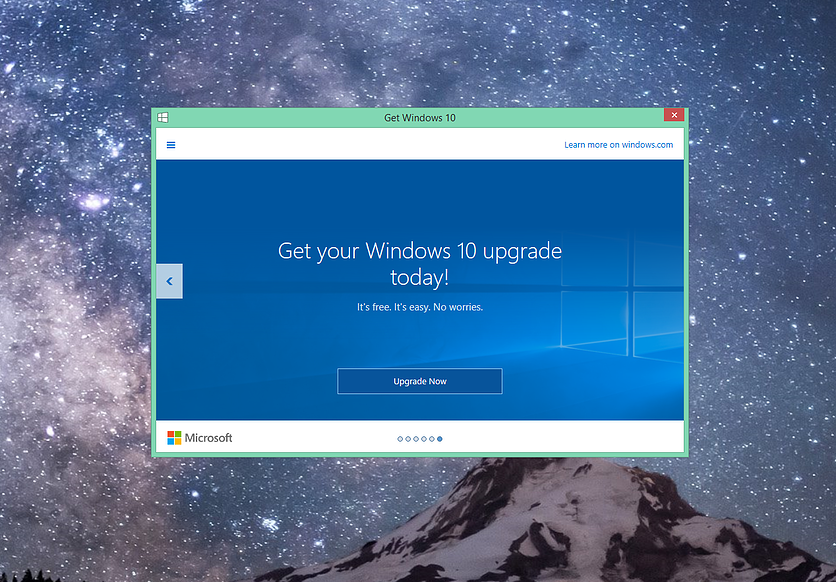
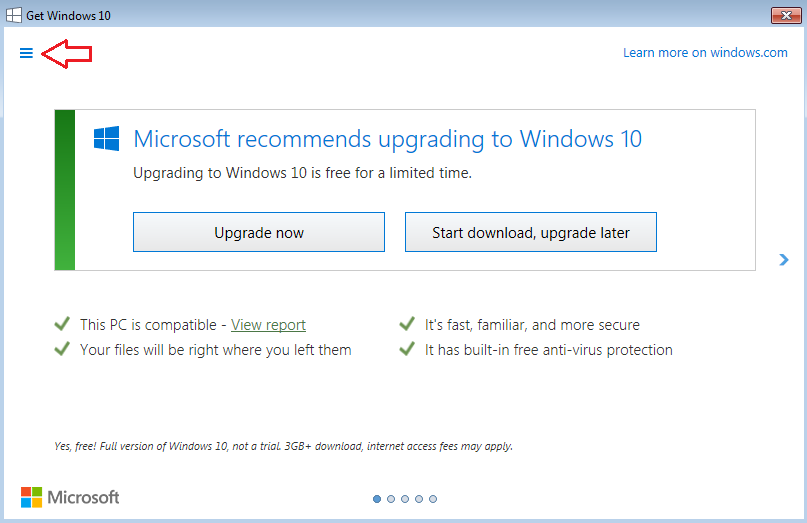
The second step that many people gloss over is to use the built-in compatibility checker on the “Get Windows 10” app itself. While limited in its capacity to fully check a system over, it can easily provide a good reference of what applications or hardware (if any) may be incompatible if the user attempts to upgrade. Simply opening the “Get Windows 10” app,
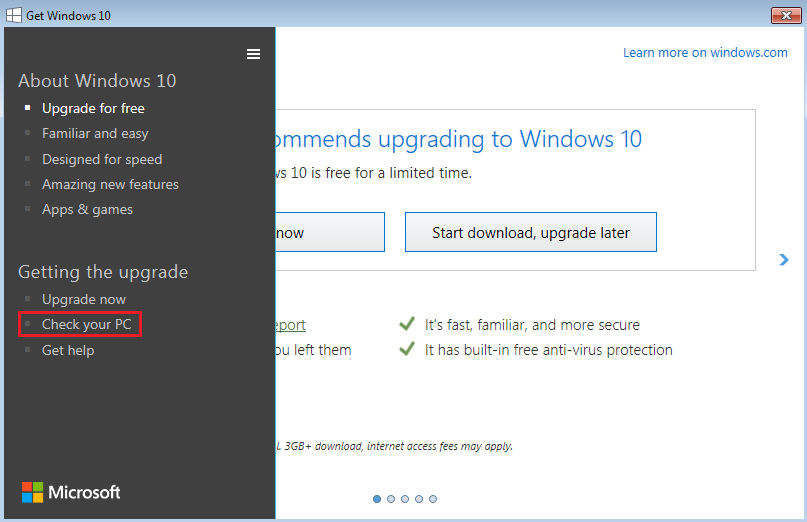
selecting the options icon in the top-left of the window,
and then clicking “Check your PC” under the “Getting the upgrade” section
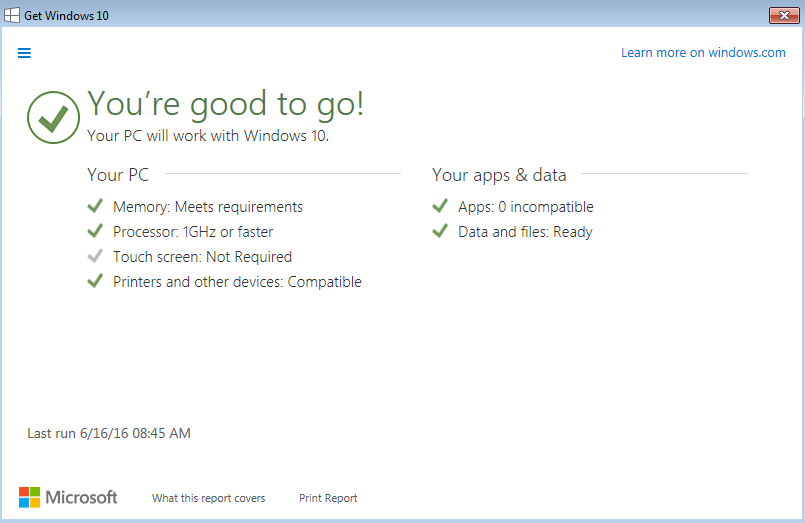
will present the compatibility checker.
Keep in mind, however, that there’s a reason this is step two – the compatibility checker is not a sure-bet and can very often miss items that could cause problems after the upgrade.
The third step, which Microsoft decided would be best left to the fine print section that no one actually reads, is to disable or uninstall your antivirus before beginning the upgrade. We typically recommend uninstalling the antivirus altogether to be on the safe side. Unfortunately, this step is probably one of the most harmful steps to skip, as it usually won’t outright prevent an upgrade from happening, but it can very easily cause major hiccups or problems after the upgrade is complete. Problems we’ve observed as a result of this crucial step being overlooked have ranged from an unresponsive Start Menu, to a desktop or home screen that constantly flashes black, to even a computer that simply can’t log in to any of its user’s profiles.
There have been many more issues than these, but the aforementioned symptoms are some of the more common ones. In order to disable your antivirus before an upgrade, usually right-clicking it’s icon in the lower right-hand corner of the screen will yield the option to “turn off protection” or something of that verbage. However, to uninstall it altogether (given you have the product key or account information required to reinstall it), simply navigating to or searching out “Control Panel” and then “Programs and Features” or “Add or Remove Programs” will allow you to uninstall it.
Then, once the upgrade has gone through, simply use the same method as before to re-enable your protection if you simply disabled it, or reinstall it from the disk or website it came from, so long as you have the account information or product key available.
Whether you’re upgrading from Windows 7 or Windows 8, always bear in mind that not every upgrade will go smoothly. This type of procedure is probably the most significant software change one can make to a computer, so there is always a good chance something might not go as expected. However, with the right preparation, you can minimize your risks of encountering problems after the switch. Of course, if any problems are encountered, you can always seek help from your local technician.
Parents: did you ever keep secrets from YOUR parents when you were younger? Information such as where you went after school, if you were dating anyone, or where you spent your money? If any of this sounds familiar, you are definitely not alone. In those days, however, the exchange of information was a lot more limited, and with some things it was nearly impossible to keep a secret from your mother or father. Unlike those days, there are now far more ways in which kids can hide information from their parents, and in many cases, this information can put them in danger.
Many parents these days probably remember having a hard time getting secrets by their parents when they were younger. They had many tricks up their sleeves – skills they learned, often from being busted by their own parents. Secret contacts, convenient and unexpected schedule changes, random check-ups, or just plain intuition. You might think you had gotten off scott free, but a friend’s parent would tell your parents that you were over their house, or your parents would stop by your own house unexpectedly when you were playing hookie, or one of your friends would slip up and indicate offhandedly that you had actually visited the arcade or the movie theater instead of the book store. Whatever the case, at the end of the day, you would be in trouble. For some, that part is probably the MOST familiar part. But either way, both the rebellious acts, as well as the consequences that came with them, would be valuable experiences. After all, a bird has to stretch its wings sometime, even if that means crashing into the ground on more than one occasion. However, as technology has begun to outpace the rest of society, the amount of information that can be shared online has become far more dangerous to the well-being of many, and kids have only been finding more new ways to circumvent their parents.
One of those new methods is through a new set of secret or otherwise hidden apps, capable of doing anything from hiding pictures and text messages, to disguising themselves as other apps for privacy, to even sending temporary messages that “Self Destruct” after a time has passed. With these new tools at their disposal, gone are the days in which a parent need only look at their kids’ text logs or their internet history to see what they’ve been up to. In this case, the kids have begun developing tricks of their own.
One of the newest and most popular applications is, at first glance, a simple calculator app called “Calculator%“. This application is not just a dummy app, it actually is a fully functional calculator. However, the magic happens when you hit the decimal key, input a series of numbers, which can be set by the user, and then hit the decimal key again. Just like that, the calculator app reveals a hidden space where the user can save information at will, information which cannot be accessed any other way. Beyond this level of functionality, the app is also designed in such a way to protect its user, even if the app is found out, by taking pictures of the person trying to log in, whether they are successful or not, and including them with a time, date, and GPS coordinates of the attempt in a log that cannot be altered. This app in particular has become SO popular that an article about it was even featured on ABC news, analyzing the different ways in which this app functions, and warning parents to keep an eye out for it. Again, to parents, watch for suspicious look-alike apps like these – if they’ve gone through the trouble of setting something like this up, you can be sure that they have something serious to hide.
Another powerful asset to those looking to hide their messages specifically is a unique project called “Kaboom“. This application allows one to post or send messages that have a sort of “self-destruct” timer built into them, which causes them to disappear after a certain amount of time. This does resemble what other apps are already doing, but there are some differences. In the case of Snapchat, users can send images and videos to each other that will disappear after a single viewing. The app is quite popular among millions of people, even many celebrities, and is typically innocent enough, but its temporary nature opens it in some kids’ minds as an excellent means of sharing sensitive information that cannot be saved. What many don’t realize, however, is that receivers can still screenshot the open picture or a frame of the video, and thus save it permanently. On the other side, an app like Wickr offers an entire Instant Messaging service with self destructing text messages. The app is so secure and well designed, that it’s even used among state officials and journalists in oppressive countries to communicate discreetly. Thankfully, it’s not too popular among kids yet, but the potential it represents makes it certainly worth mentioning. What sets Kaboom apart from the former two is that it does not require users to switch to a new app or service to use, and instead allows users to send self-destructing messages through the services they already use. Nearly any major messaging application or social network can be used with the app; this includes Facebook, Twitter, Instagram, and others, but it also includes forms of communication everyone has access to already, such as Email and Text Messaging. This leaves Kaboom as one of the more potentially widespread methods of discreetly messaging.
Needless to say, this caliber of unmoderated communication that many kids have access to can be very dangerous, and the news is always rife with stories of abductions, kidnappings, or dangerous behavior. Naturally, many parents try their hardest to keep a protective eye on their kids’ online and social activities, but doing so can quickly become a full time job, and with some of the applications above, almost impossible. Thankfully, there are some good practices to follow that can significantly improve one’s chances at keeping their kids safe, and ensuring their security online.
First, the tried and true method of keeping an open contract of communication with your kids is important – talking about a problem with your kids, rather than just jumping right to a punishment, can help them understand why you feel the way you do, and that you aren’t just being completely arbitrary and controlling. Make the problem real; remember, the things you’re worried about don’t actually exist to your kids, and as you might remember, in their minds, they are invincible. Being a resource for discussion, rather than an authority to hide from, can definitely help in removing the need for such apps or secrets in the first place.
Secondly, keep your hands on the reins, but don’t hold them too tightly. As a young adult, I can definitely attest to the fact that I was more likely to fight back the more I felt the prying eyes and meddling claws of my parents in my affairs. Some kids see their parents almost as a government or state of sorts, and romanticize the thought of breaking free from their proverbial shackles. Don’t let them feel like they have anything to hide, as before, but most of all don’t let them feel like they’re being watched. You have to stay involved to keep them safe, but being subtle and non-invasive about it can make them feel a lot more comfortable. Imagine how you might react if some government agency like the FBI showed up and started installing cameras and listening devices around your house. You would protest and act pretty rebelliously too, I would imagine. Keep in mind how you want to be seen; do you want to be the noble Jedi protecting the innocent, or the sinister Galactic Empire, destroying worlds and oppressing the masses?
Third, if it seems to be turning into a real problem, you can always enforce your rules technologically, too. Don’t use passwords on your devices; they’re often easy to guess, and if you enter them around your kids enough, they’ll know them in no time. Instead, use something they can’t fake. Namely, many popular smartphones and tablets these days have fingerprint scanners; those can’t be tricked by the press of a few buttons. For those devices that don’t have fingerprint scanners, applications often exist that can allow you to log in with other more secure means. Any device with a camera will usually have the capability of working with a facial-recognition app, and some devices have other unique password-substitutes such as knocking a rhythm on the screen or drawing a pattern with your finger. While fallible, these latter methods are much harder to guess or remember to an observer than a passcode.
Beyond this, you can secure devices against the installation of applications on their own devices by a few means. In the case of a Mac or PC, making their account a standard user account one while keeping an administrator account locked with your own credentials on the same computer will require them to ask you to install the application from your own account, giving you a chance to see it for yourself prior to installation. For Android and iOS devices, where having multiple accounts on a personal phone or tablet does not make sense, you can register your child’s account for the app store under your own, and invoke the requirement of your approval for all app purchases or downloads. This is where the above methods of keeping your own devices secure is especially important, as all this is for naught if your kids can simply get into your accounts and give “your” permission.
As a parent, keeping your kids safe can be difficult, but there are always options available to you to make the job easier. If you have questions or concerns about these types of applications, as well as the methods by which you can better protect your children, feel free to call us at RGB, or contact your local technician.
If you’re like me, and indeed most people, you tend to have a bit of trouble remembering passwords for your different online accounts. At the very least, you may remember the passwords themselves, but not what they go to. What’s worse is that many account-connected services will auto-lockout when hit with too many wrong passwords. It’s almost like having a lock that breaks and becomes unusable after you try the wrong key.
Thankfully, as many companies and developers have become aware of this common problem, a good number of tools, features, and programs have cropped up over the years to help. We’ll be looking at some of these solutions, from built in features to standalone programs, and comparing the capabilities and convenience of everything from the basic to the advanced.
The most basic form of password management is the built-in password autofill option incorporated into most modern web browsers.
Now, for the most commonly used browsers out there, any new webpage or account that is signed into with a username and password will prompt the browser in question to ask if the user wishes to save that information for easy access later. If the user chooses to accept the prompt, then the browser will automatically enter the correct information to log in to a webpage every time the user accesses said webpage. In addition to this convenience, most browsers also have synchronizing capabilities to some extent, and as such can log a user in and provide usernames and passwords for the user’s accounts, even on a computer that wasn’t originally used to save the password, so long as the user is logged into the browser itself.
However, this method has its disadvantages. First off, the very fact that the information is not itself password protected means that anyone with access to your computer, or one of the computers you are signed into with that browser, can access any of your accounts without having to directly know the information required to do so. Besides this, the feature itself is usually not very easy to control. Once a password is saved, some browsers require you to go through a mess of menus and interfaces to manage or remove this type of saved information, and some don’t let you pick and choose, requiring you to remove all of the browser’s data, even down to your history and your bookmarks, in order to get rid of a saved password. For another thing, the browser’s password saving is obviously limited to only things you can open in said browser, and will not be effective on applications loaded onto your computer such as Adobe Creative Cloud, QuickBooks, ACT!, etc.
The next step up from this form of credential management are tools like Norton’s Identity Safe.
Identity Safe is a free program provided by Norton, and is frequently bundled with their antivirus package, making it one of the more commonly seen options on this list. Although it has some of the same limitations as the browsers’ integrated options, it definitely surpasses them in a few key areas. For one thing, it protects your many passwords with a master password, which is immediately more secure than browser-stored passwords. It still stays synchronized across different computers and devices since it is cloud based, meaning wherever you go, your passwords are just a log in away. It has an account and password manager for deleting or altering login data for different websites and specific accounts should they change or become out of date. It can also conveniently import existing passwords and account information from a web browser of your choice, so upon setting it up it is not necessary to go through and re-enter every piece of information you already have stored. It can also remember multiple logins for the same site, should you have multiple accounts.
Unfortunately, it still faces certain disadvantages, just like the options listed above. For one thing, Identity Safe only works, once again, on webpages. It has no support for logging into applications outside of a web browser. It also is not as secure as many would like, as all those passwords you have stored could be the most secure in the world, but that wouldn’t protect you if someone were to guess your master password. Beyond this, it also reportedly has trouble with identifying certain web pages that it should save the passwords for, but doesn’t. All in all, it’s a good option for the fact that it’s free, and it’s more secure than not, but it still has its disadvantages.
If you are looking for essentially the last word in secure passwords, look no further than products such as LastPass and Roboform.
Both programs rectify every weakness seen in the previous options, and include every feature already seen. However, both add the ability to generate large, randomized, and complex passwords. Both also work on external applications as well as webpages. both allow for numerous different form autofills and account logins for as many websites and applications as you wish as well. Security wise, both are heavily encrypted and virtually impossible to breach, as well as having the capability to set up a two step-authentication, which is a method of logging in that requires more than one password or method. In fact, the user has a good deal of options for authentication methods, even down to their fingerprints if the device has a fingerprint reader.
All in all, you cannot get more secure than these. Their convenience parallels their effectiveness, removing any real difficulty in choosing or managing what information is to be protected by these applications. In this day of identity theft and cyber crime, it is all the more important to remain vigilant and well guarded online.
Back in February, Microsoft announced it would be resetting Windows 10’s status from an “Optional Update” to a “Recommended” one. While this might not seem to be a big deal, it has become a potential problem for millions of unwary Windows 7 and Windows 8 users out there. You see, by default, Windows 7 and Windows 8 are set to automatically install Recommended updates. Now, we’ve spoken before about what a Windows 10 upgrade could mean for a lot of people, and it’s safe to say that an unexpected or ill-prepared-for upgrade could even be dangerous to a computer or its data. Thankfully, it’s not a difficult process to prevent the upgrade from occurring automatically, and there are only a few steps required.
Step 1
First off, clicking the start button in the bottom left of the screen will bring up the start menu. Besides containing a number of options for viewing files, opening programs, and shutting down the computer, there is also a search box at the bottom for finding specific options. You’ll want to use it to find the “Windows Update” option. (Windows 8.1 users should still be able to perform these actions. However, when the Start Screen opens, either starting to type or clicking on the magnifying glass icon in the top right should allow you to search.)
Step 2
The Windows Update control panel will open, which is used for managing and choosing updates to be installed on your computer. In this case, the order of business is to keep Windows from installing “Recommended” updates automatically, so click on the “Change Settings” option.
Step 3
On the following screen, the option to “Install Updates Automatically” should be selected and changed to “Download updates but let me choose whether to install them” instead. This will keep Windows 10 from being unintentionally installed unless you are ready and willing to make the switch.
For the past 20 years or so, websites and applications across the world have relied on platforms such as Shockwave, Java, Flash, and Silverlight to show everything from video games to interactive graphics and financial graphs. Although many have declined in use over the past decade, most of the computers in the world still run Java or Flash Player, but the vast majority of people don’t know what either of them are for, only that they might be “important”. For this reason, it is important to understand more about Flash and Java updates.
Unfortunately, the almost universal adoption of these two programs opens up an easy target for scammers looking to steal user information or fool people into installing less than legitimate programs on their computers. The weakness comes from both sides in the form of updates for Flash,
as well as Java.
As far as the first group is concerned, their objective is to hit people who have not updated in a while, and who still have outdated versions of either program, in attempts to exploit glitches or chinks in the program to their advantage. This is usually with the intention of stealing valuable information such as credit card or social security numbers, online banking logins, et cetera. For this group the best defense is to always stay up to date and never open any emails from senders you don’t recognize. Frequently, links or attachments to any such exploits are sent via email in a message that may seem completely innocuous.
Now, this brings us to group two. Group two relies on the fact that most people have Flash and Java, and most people wish to keep them up to date, and so disguises their malicious or unwanted software as Flash or Java in order to trick people into downloading them. This method is typically more prevalent than the first, and ironically takes advantage of people’s fears concerning not being up to date and protected. More often than not, these types of illegitimate “updates” are shoehorned over webpages in the form of popups such as the one below.
The average person might see this and choose to download the “update”, believing it to be to their benefit. However, at the very least, the resulting program will be annoying, and at the very worst, dangerous to your security. The best defense against these types of attacks is to never download anything from a popup, and to always take careful notice of details in the popup itself. Ask yourself, “does this look legitimate?” Comparing the two Flash “updates” above, we see that the bottom one has several tells that indicate it’s not what it says it is. For example, the bottom one lacks any sort of officially licensed Adobe markings or insignias, is filled with jargon intending to sell itself rather than inform users of improvements, has no option to install the update later, and it possesses no End User License Agreement.
All the same, it’s usually best to avoid any sort of popups claiming to be updates or “free downloads” if possible. When you see a popup, even one that seems legitimate, there’s a fool-proof way of telling. Go straight to the developer’s website for the product, whether it be Flash or Java, and you can get the latest version from adobe.com and java.com, respectively.
In our previous article, we discussed some of the new features for those looking to make the switch to Windows 10. One of those features was a particularly interesting one – a virtual assistant for Windows. Now, virtual assistants aren’t a new concept – some cars provided such technologies with limited capabilities some time ago as a luxury feature, and more recent examples can be found in Google’s “Google Now”, as well as Apple’s “Siri.”
However, Cortana is the first fully integrated virtual assistant for the Windows platform, and she has a plethora of abilities that even some of the most advanced virtual assistants to date find it difficult to or are simply unable to follow.
First off, Cortana’s search capabilities are essentially unrivaled, given her ability to not only answer questions intuitively, perform searches for inquiries for which she cannot provide answers, and also getting directions and maps for locations. Beyond even this however, she can even perform more advanced functions such as searching for files by their content or creation date, or even being able to identify songs and lyrics in musical pieces.
In addition to this, Cortana can also perform more actions suitable to an assistant, with her ability to give reminders to her users based on time or location, set alarms, add events to the calendar, send emails, perform measurement conversions, and allow dictation with her voice recognition.
Most significantly, however, is Cortana’s ability to learn new things about her users over time, as well as her level of awareness in the operating system. She will proactively provide information that seems relevant to users, such as traffic conditions for a frequent commute, as well as weather conditions for oft-visited locations. She will provide news articles on topics, people, or places of interest based on previous searches or views as well. She knows how to launch programs on command, and she can even track flights or packages that her user has ordered, based on searches and the content of tracking or flight numbers.
Beside all this, Cortana’s got a personality. She can just chat with people, or provide clever responses to certain questions, tell jokes and stories, or even sing songs.
All in all, she’s probably one of the most unique and interesting additions to an iteration of Windows in a long time. Her level of integration with Windows’ services is very well thought out, and she is a very useful addition overall.